

What is this feature?
Remixing Multiple Apps lets you select and remix up to 10 Playlab apps into your workspace simultaneously. Instead of remixing apps one at a time, you can now batch select multiple apps and bring them all into your workspace in a single action. This feature streamlines your workflow when you want to experiment with, compare, or build upon multiple existing apps at once.Rationale for the feature
It’s super time intensive to remix apps one at a time. This will allow creators to move apps in a more efficient manner.How do I use Multiple App Remixing?
Go to your desired workspace
Navigate to the Playlab app workspace of your choice to browse available apps in your workspace.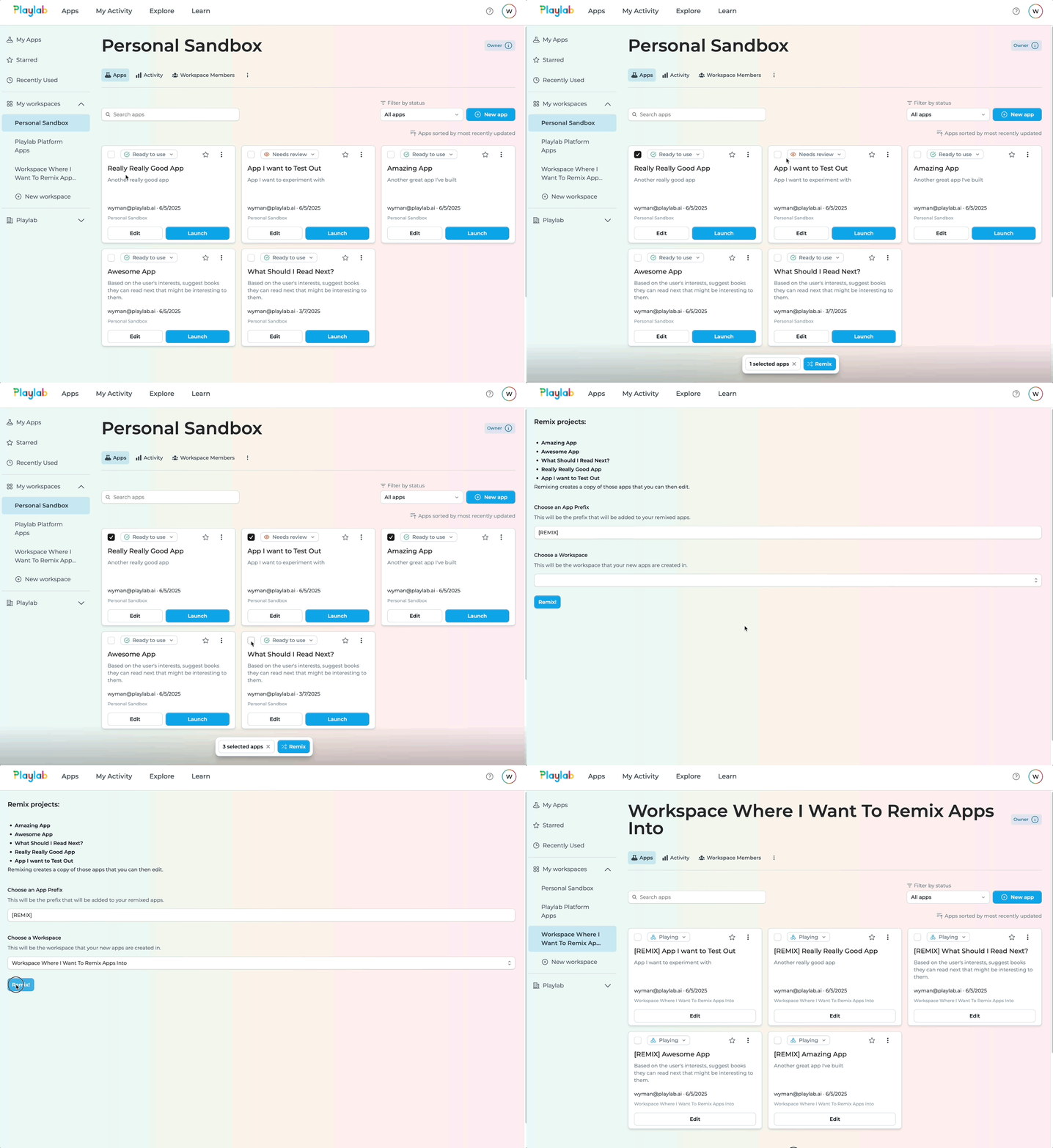
Select multiple apps
Use the multi-select feature to choose up to 10 apps you want to remix. Click the checkbox on each app or use bulk selection tools.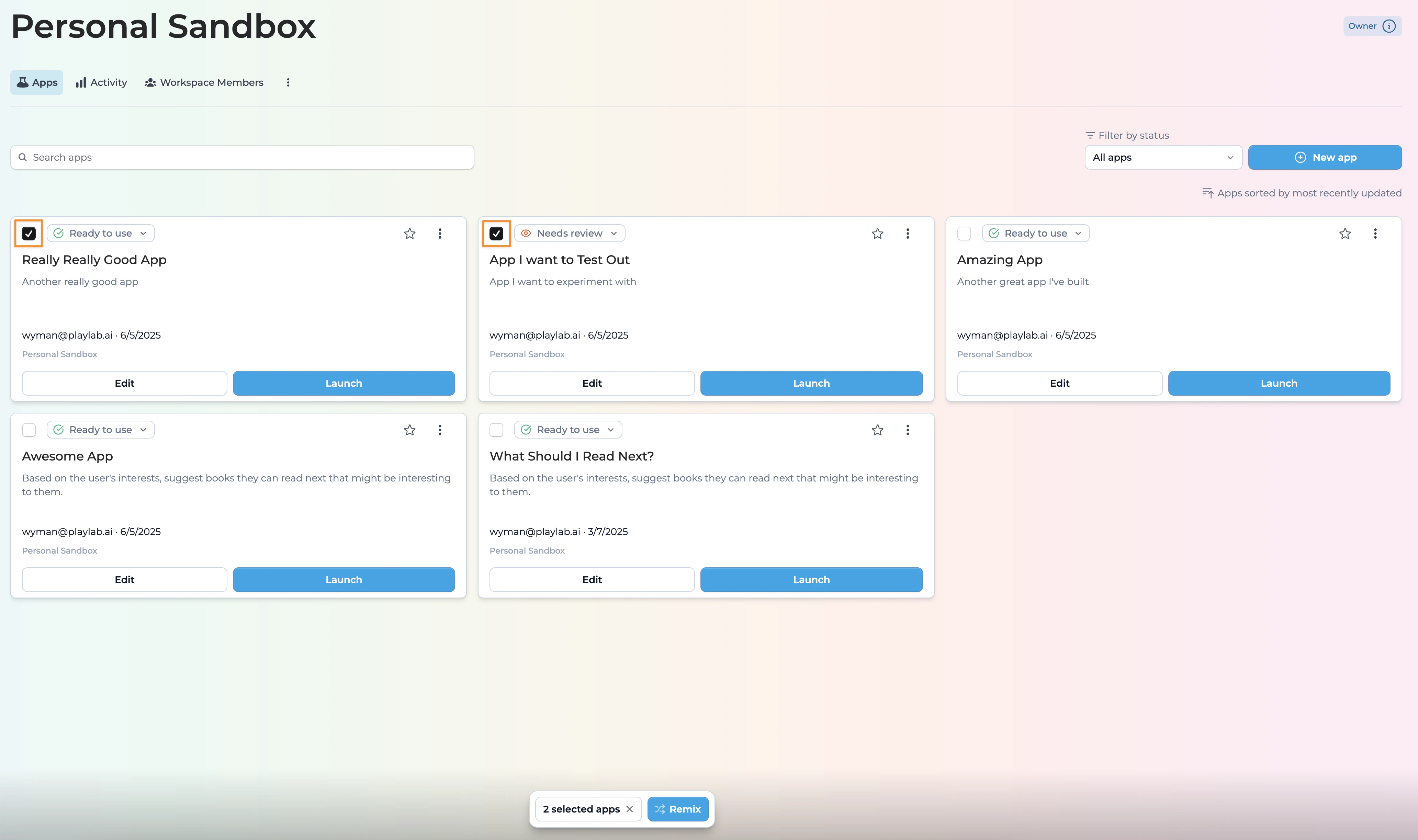
Remix selected apps
Click the “Remix Selected” button to add all chosen apps to your workspace simultaneously. You can also unselect apps by clicking the “x” here.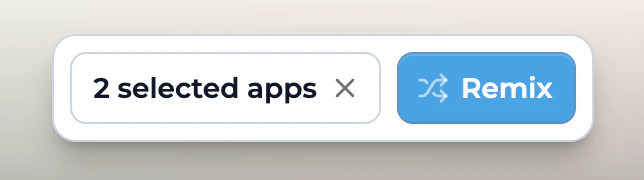
Choose a Naming Convention and Workspace
Confirm the apps that you want to remix are accurate at the top of the page.
Select a naming convention that you’d like to use. [REMIX] is the default.
Select the workspace you want to remix your apps into.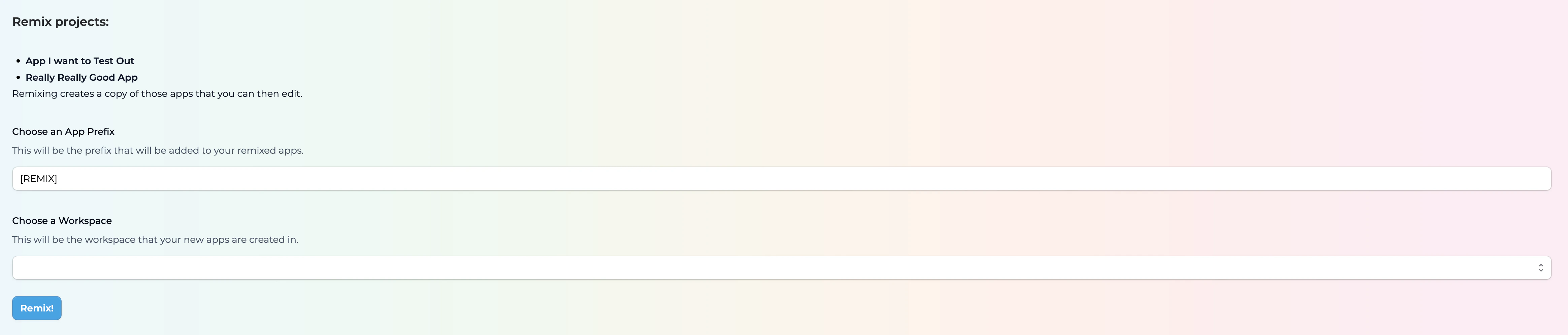
Best Practices
Plan Your Selection Strategy
- Choose apps that serve related purposes or complement each other
- Consider your workspace organization before batch remixing
- Group similar apps together for easier management
Optimize Your Workspace
- Remove unnecessary apps after experimentation
- Use clear naming conventions for remixed apps
Test Systematically
- Compare functionality across remixed apps methodically
- Document differences and learnings from each app
- Keep notes on which combinations work best
Manage Workspace Efficiently
- Regularly clean up unused remixed apps
- Balance exploration with workspace organization
- Consider creating separate workspaces for different projects
FAQ
What's the maximum number of apps I can remix at once?
What's the maximum number of apps I can remix at once?
You can remix up to 10 apps simultaneously. This limit ensures optimal performance and prevents workspace overwhelm while still providing significant time savings over individual app remixing.
Can I remix apps from the Playlab Explore page?
Can I remix apps from the Playlab Explore page?
No, currently you can only remix apps from workspaces that you have access to as a creator or admin.
Do remixed apps maintain their original functionality?
Do remixed apps maintain their original functionality?
Yes, remixed apps retain all their original functionality, prompts, and configurations. They become independent copies in your workspace that you can modify without affecting the original apps.
Can I remix private or restricted apps in bulk?
Can I remix private or restricted apps in bulk?
You can only remix apps you have access to. Only apps that you have admin or creator access can be remixed by you.
Can I remix apps from multiple workspaces?
Can I remix apps from multiple workspaces?
Yes, you can remix apps from multiple workspaces at once. When you’re selecting apps for batch remixing, you can see how many apps you’ve selected indicated at the bottom of the interface, regardless of which workspace they originate from.